

Table of Contents
How to Build a High-Converting WordPress Web Design for Small Businesses
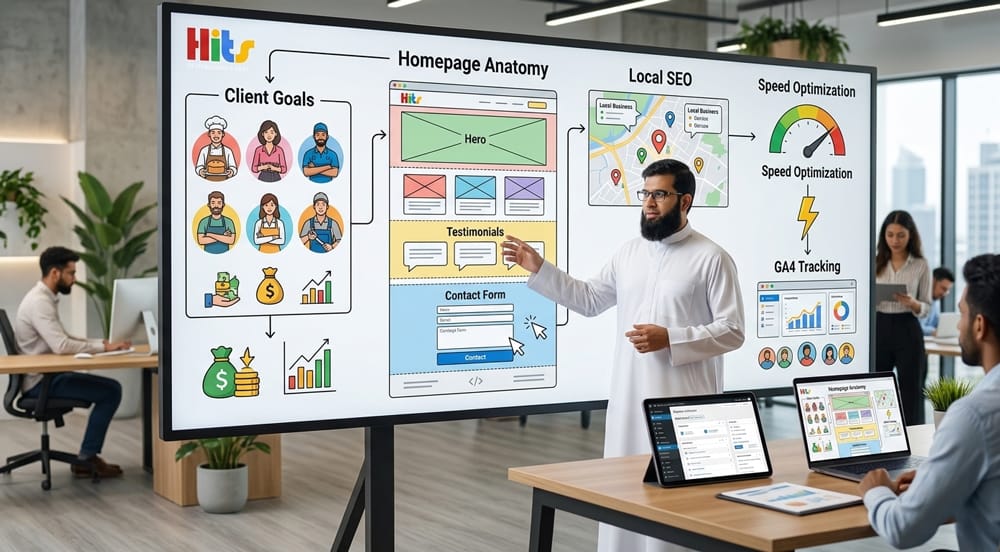
A high-converting WordPress web design for small businesses is not about aesthetics alone. It is a strategic system that combines clear client goals, proven homepage structure, brand-aligned visual identity, smart lead capture, local SEO, fast load times, and data-driven measurement. Build all seven layers correctly, and your WordPress site becomes your most powerful sales tool.
Why WordPress Web Design Is the Smart Choice for Small Businesses
WordPress powers over 43% of all websites on the internet as of 2026. For small businesses, this means a massive ecosystem of themes, plugins, developers, and support resources — all without the enterprise-level budget of custom-coded platforms.
Key reasons small businesses choose WordPress:
- Low cost of entry with free core software
- Thousands of conversion-optimized themes
- Plugin ecosystem covering SEO, forms, booking, and analytics
- Easy content management without developer dependency
- Scalable from a 5-page brochure site to a full eCommerce store
The question is not whether to use WordPress. The question is how to design it so it actually converts visitors into customers.
Section 1: Understanding Client Goals Before Touching the Design
Why Do You Need to Understand Business Goals First?
Skipping discovery is the #1 reason WordPress websites fail to convert. Before opening a single page builder or choosing a theme, you must understand what the business needs the website to do.
A great WordPress web design starts with answers — not mockups. The design is the output of strategy, not the strategy itself.
What Questions Should You Ask in a Discovery Session?
Use this structured discovery framework before any WordPress project begins:
| Discovery Area | Key Questions to Ask |
|---|---|
| Business Goals | What does success look like in 6 months? What is your #1 revenue source? |
| Target Audience | Who is your ideal customer? What problem are they trying to solve? |
| Competitors | Who are your top 3 competitors? What do you like or dislike about their sites? |
| Conversion Action | What should visitors do — call, book, buy, sign up, or visit in person? |
| Content Assets | Do you have brand photos, a logo, testimonials, or case studies ready? |
| Budget & Timeline | What is your launch deadline? Do you have a budget for premium plugins or hosting? |
How to Translate Client Goals into Design Decisions
Once you have clear answers, map each business goal to a design decision:
- Goal: Generate phone calls → Large click-to-call button in header + sticky mobile bar
- Goal: Book appointments → Booking plugin integrated into the hero section
- Goal: Build trust in a competitive market → Testimonials, certifications, and media mentions above the fold
- Goal: Rank locally → Local SEO schema and location-specific landing pages built into the architecture
Every design choice must trace back to a business goal. If it cannot, it probably should not be in the design.
Section 2: Anatomy of a High-Converting Homepage
What Makes a WordPress Homepage Actually Convert?
Most small business homepages fail because they are designed to look impressive rather than to guide visitors toward a single clear action. A converting homepage is a deliberate sequence — each section answers one question in the visitor’s mind before they move to the next.
What Are the Essential Sections of a Converting Homepage?
The Hero Section — Your First 5 Seconds
The hero section is where 70% of visitors decide to stay or leave. It must do three things instantly:
- Tell visitors who you are and what you do
- Address the problem they came to solve
- Offer a single, clear next step
Hero Section Checklist:
- Headline under 10 words that speaks to the customer’s pain point
- Sub-headline (1–2 sentences) that explains your solution
- Primary CTA button — high-contrast color, action verb (“Book a Free Consultation”)
- Supporting visual — a real photo of your team, product, or location (not a stock photo)
- Mobile-optimized layout with click-to-call or sticky CTA for mobile users
Trust Signals — Why Should They Believe You?
Trust signals reduce friction and overcome objections without the visitor having to ask. Place them immediately below the hero or embedded within it.
| Trust Signal Type | Example |
|---|---|
| Social Proof Numbers | “500+ Clients Served” / “4.9★ on Google (312 Reviews)” |
| Logos | As seen in / Trusted by [recognizable brand logos] |
| Certifications | BBB Accredited / Licensed & Insured / Google Partner |
| Video Testimonial | A 60-second client story embedded on the homepage |
| Awards | “Best of [City] 2025” / Industry association recognition |
CTA Placement — Where and How Often?
A converting homepage uses CTAs strategically — not aggressively. Follow this placement model:
- Hero section — primary CTA (book, call, or buy)
- After the services/features section — secondary CTA (“See Our Work” or “Get a Quote”)
- After testimonials — reinforcing CTA (“Join 500+ Happy Customers”)
- Footer — persistent CTA with contact information
CTA Best Practices:
- Use action-oriented verbs: Get, Start, Book, Claim, Download
- Contrast CTA button color against the background — do not match the brand palette
- Add micro-copy beneath the button to reduce fear: “No credit card required” or “Free, no-obligation quote.”

Section 3: Choosing the Right Color Psychology and Font Pairing
How Do Color and Typography Affect Conversion?
Design is not decoration — it is communication. Colors trigger emotional responses before a single word is read. Typography signals professionalism, accessibility, and personality.
Small businesses that choose colors and fonts strategically are consistently perceived as more trustworthy and authoritative than competitors who choose based on personal preference alone.
What Colors Work Best for Small Business WordPress Sites?
| Color | Psychological Effect | Best For |
|---|---|---|
| Blue | Trust, calm, reliability | Financial services, healthcare, legal |
| Green | Growth, health, safety | Wellness, eco brands, finance |
| Orange | Energy, friendliness, urgency | Retail, food, home services |
| Red | Urgency, passion, bold action | Clearance sales, food, entertainment |
| Black/Gold | Luxury, exclusivity, premium | High-end services, consulting |
| White + Accent | Clarity, minimal, modern | Tech, SaaS, medical, professional services |
Color Application Rule — The 60-30-10 Formula:
- 60% — Dominant neutral (white, light gray, off-white)
- 30% — Brand primary color (backgrounds, headers)
- 10% — Accent/CTA color (buttons, links, highlights)
What Font Pairings Work for WordPress Small Business Sites?
Choose one serif or sans-serif for headings and a highly legible sans-serif for body text. Never use more than two font families.
| Pairing | Best Use Case | Tone |
|---|---|---|
| Playfair Display + Lato | Boutique retail, law firms, restaurants | Elegant, trustworthy |
| Montserrat + Open Sans | Tech, agencies, startups | Modern, clean |
| Merriweather + Source Sans Pro | Healthcare, education, nonprofits | Authoritative, readable |
| Raleway + Roboto | Architecture, design studios, consultancies | Sophisticated, minimal |
Typography Rules for WordPress:
- Minimum body font size: 16px (accessibility standard)
- Line height: 1.5–1.7 for comfortable reading
- Heading hierarchy: H1 → H2 → H3 with clear size contrast (never skip levels)
- Load fonts via Google Fonts or locally to avoid render-blocking
Section 4: Integrating Lead Capture, Booking Systems, and Contact Flows
What Lead Generation Tools Should a Small Business WordPress Site Have?
Every WordPress web design for a small business must have at least one active lead capture system. Passive contact pages alone are no longer enough.
Lead Capture Options by Business Type:
| Business Type | Recommended Tool | Plugin |
|---|---|---|
| Service business (plumber, lawyer, accountant) | Quote request form | WPForms / Gravity Forms |
| Restaurant or salon | Online booking calendar | Amelia / Simply Schedule Appointments |
| Consultant or coach | Discovery call scheduler | Calendly embed / TidyCal |
| Retail or eCommerce | Email opt-in with lead magnet | Mailchimp for WP / FluentCRM |
| Local service area business | Click-to-call + SMS opt-in | WP Call Button + SMS integration |
How Should You Design the Contact Flow in WordPress?
A contact flow is the full path from “I’m interested” to “I’ve submitted my information.” Design it to minimize friction at every step.
5-Step Contact Flow Optimization:
- Trigger — CTA button or inline form with a low-barrier offer (“Get a Free Quote in 60 Seconds”)
- Form Design — Ask only for essential fields (Name, Email, Phone, Service needed). Every extra field reduces completion by ~11%
- Confirmation Page — Redirect to a custom thank-you page (not a generic message). Set expectations: “We’ll call you within 2 business hours.”
- Automated Email — Send an immediate confirmation email with next steps and a link to your calendar
- CRM Integration — Connect WPForms or Gravity Forms to a CRM (HubSpot free, Zoho, or FluentCRM) so no lead is ever lost
Should You Use a Popup for Lead Capture?
Used correctly, popups convert 3–9% of visitors who would otherwise leave without taking action. Used poorly, they destroy the user experience and increase bounce rate.
Popup Best Practices:
- Trigger on exit intent (when the mouse moves toward the browser close button) — not on page load
- Offer genuine value: a discount, checklist, guide, or free assessment
- Include a clear close button — never trap users
- Do not show popups on mobile in intrusive full-screen formats (Google penalizes this)
Section 5: Local SEO Structure Built Into the Design From Day One
Why Must Local SEO Be Part of the WordPress Design — Not an Afterthought?
Many small businesses add SEO “later” — after the site is launched. This approach costs months of ranking potential. Local SEO must be embedded into the site architecture, page structure, and code from the very first build.
A WordPress site built with local SEO in mind ranks faster, ranks higher, and converts better because location-specific intent is baked into the user experience.
What Local SEO Elements Should Be Built Into WordPress Design?
On-Page Structure
- H1 tag on every page must include the primary keyword + location: “WordPress Web Design Services in [City].”
- Title tags: 50–60 characters, keyword + location + brand name
- Meta descriptions: 150–160 characters with location and a CTA
- URL structure:
/services/wordpress-web-design-chicago/— not/page-2/ - NAP consistency: Business Name, Address, and Phone number must be identical across the website, Google Business Profile, and all directories
Schema Markup
Implement the LocalBusiness schema in the <head> of every page. Use the Rank Math or Yoast SEO plugin to generate and deploy it:
json
{
  "@type": "LocalBusiness",
  "name": "Your Business Name",
  "address": {
    "@type": "PostalAddress",
    "streetAddress": "123 Main St",
    "addressLocality": "Chicago",
    "addressRegion": "IL",
    "postalCode": "60601"
  },
  "telephone": "+1-312-555-0100",
  "openingHours": "Mo-Fr 09:00-18:00"
}
Location-Specific Pages
If a business serves multiple areas, build individual landing pages for each location:
| Page URL | Target Keyword | Unique Content Requirement |
|---|---|---|
/wordpress-design-chicago/ | WordPress web design Chicago | Local landmarks, local testimonials, area map |
/wordpress-design-evanston/ | WordPress web design Evanston | Evanston-specific service detail, local reviews |
/wordpress-design-naperville/ | WordPress web design Naperville | Naperville business context, unique CTA |
Never duplicate content across location pages. Each page must have at least 400 words of unique, location-specific content or Google will treat it as thin content.
Recommended Local SEO Plugins for WordPress
- Rank Math SEO — Best all-in-one for schema, sitemaps, and on-page optimization
- Yoast SEO Local — Purpose-built for local SEO with map and hours integration
- WP Google Maps — Embeds a Google Map with your pinned location directly into pages
Section 6: Speed Optimization — Image Formats, Caching, and Hosting
Why Does Page Speed Directly Impact Conversion for Small Businesses?
Speed is not a technical metric — it is a revenue metric. Research consistently shows:
- A 1-second delay in page load time reduces conversions by 7%
- 53% of mobile users abandon a website that takes longer than 3 seconds to load
- Google’s Core Web Vitals are a confirmed ranking factor — slow sites rank lower and lose traffic
Target Benchmarks for a Converting WordPress Site:
| Metric | Target Score |
|---|---|
| Google PageSpeed (Mobile) | 85+ |
| Google PageSpeed (Desktop) | 90+ |
| Largest Contentful Paint (LCP) | Under 2.5 seconds |
| Cumulative Layout Shift (CLS) | Under 0.1 |
| First Input Delay (FID) / INP | Under 200ms |
| Time to First Byte (TTFB) | Under 800ms |
What Image Formats Should You Use in WordPress?
Images are the single largest contributor to slow WordPress sites. Use the right format and compression from the start:
| Format | Best Use Case | Notes |
|---|---|---|
| WebP | All photography and complex images | 25–35% smaller than JPEG at same quality |
| AVIF | Next-gen option for supported browsers | 50% smaller than JPEG — use with fallback |
| SVG | Logos, icons, illustrations | Infinitely scalable, tiny file size |
| PNG | Images requiring transparency | Use sparingly — larger file size |
| JPEG | Legacy fallback only | Convert to WebP wherever possible |
Image Optimization Plugin Recommendations:
- ShortPixel — Automatic WebP conversion + bulk compression
- Imagify — Smart compression with quality preview
- Smush — Free tier available, lazyload built-in
Always set explicit width and height attributes on every image in WordPress to prevent layout shift (CLS).
What Caching Strategy Should a WordPress Site Use?
Caching stores a static version of your pages so they load without querying the database on every visit. For small business sites, a two-layer caching approach works best:
Layer 1 — Page Caching Plugin:
- WP Rocket — Best overall, includes minification, lazy load, and CDN integration (premium)
- W3 Total Cache — Free, powerful, requires more configuration
- LiteSpeed Cache — Best if your hosting uses LiteSpeed servers (free)
Layer 2 — CDN (Content Delivery Network):
- Cloudflare (free tier) — Routes visitors to the nearest server globally, adds DDoS protection
- BunnyCDN — Budget-friendly option starting at $1/month
What Hosting Should Small Business WordPress Sites Use?
Hosting is the foundation of performance. Shared hosting is fine for low-traffic sites, but managed WordPress hosting delivers the best speed-to-cost ratio for small businesses.
| Hosting Tier | Recommended Provider | Best For |
|---|---|---|
| Shared (Budget) | SiteGround Starter / Hostinger | New sites, under 5,000 visits/month |
| Managed WordPress | Kinsta / WP Engine / Flywheel | Professional sites, 5,000–50,000 visits/month |
| Cloud VPS | Cloudways (DigitalOcean) | High-traffic or WooCommerce sites |
| Enterprise | Pressable / Pantheon | Agency-managed, multi-site environments |
Avoid shared hosting providers that do not offer PHP 8.1+, automatic backups, or a free SSL certificate. These are non-negotiable in 2026.
Section 7: Measuring Design Success with Heatmaps and Google Analytics 4
How Do You Know If Your WordPress Web Design Is Actually Working?
Launching a WordPress site without measurement tools is like driving without a dashboard. You might be moving fast — or you might be running out of fuel — and you would not know either way.
Data transforms guesswork into decisions. Every small business WordPress site must have a measurement stack in place before launch day.
What Is the Essential Analytics Stack for a WordPress Website?
| Tool | Purpose | Free/Paid |
|---|---|---|
| Google Analytics 4 (GA4) | Traffic source, user behavior, conversion tracking | Free |
| Google Search Console | Keyword rankings, impressions, crawl errors, Core Web Vitals | Free |
| Hotjar / Microsoft Clarity | Heatmaps, session recordings, scroll depth | Free tier available |
| Google Tag Manager | Deploy and manage all tracking scripts without developer | Free |
| MonsterInsights | GA4 dashboard inside WordPress admin | Free + Premium |
How Do You Set Up GA4 on a WordPress Site?
Step-by-step GA4 setup for WordPress:
- Create a GA4 property at analytics.google.com
- Copy your Measurement ID (format: G-XXXXXXXXXX)
- Install Google Tag Manager (GTM) on your WordPress site using the GTM4WP plugin
- Create a GA4 Configuration Tag in GTM and publish
- Set up Conversion Events in GA4: form submissions, phone clicks, booking completions
- Link GA4 to Google Search Console for combined keyword + behavior data
What Should You Look for in Heatmap Data?
Heatmaps reveal how real visitors interact with your WordPress pages — which sections they read, which they ignore, and where they click before leaving.
Key Heatmap Insights to Act On:
| What You See in the Heatmap | What It Means | Action to Take |
|---|---|---|
| Clicks on a non-linked image | Visitors expect it to be clickable | Make it a link or add a CTA |
| Low scroll depth (under 50%) | Above-the-fold content is not engaging enough | The button is not visible or the offer is weak |
| High rage-click area | Something is broken or confusing | Fix the UX issue immediately |
| CTA button ignored | The button is not visible, or the offer is weak | Change color, rewrite copy, or reposition |
| Exit at the pricing section | Price is causing hesitation | Add a comparison, guarantee, or payment plan option |
What KPIs Should You Track Monthly for a Small Business WordPress Site?
Monthly WordPress Performance Dashboard:
| KPI | What to Measure | Target |
|---|---|---|
| Organic Traffic | Sessions from search engines | Month-over-month growth |
| Bounce Rate | % of single-page visits | Under 55% |
| Average Session Duration | Time spent on site | Over 1 minute 30 seconds |
| Conversion Rate | Leads / Total Visitors | 2–5% for service businesses |
| Top Landing Pages | Which pages attract the most visitors | Optimize top 5 monthly |
| Core Web Vitals | LCP, CLS, INP scores | All “Good” status in Search Console |
| Lead Source Breakdown | Organic vs. direct vs. social vs. paid | Know where leads come from |
WordPress Web Design for Small Businesses: Full Checklist
Use this checklist before launching any small business WordPress site:
Discovery & Strategy
- Client goals documented and mapped to design decisions
- Target audience personas defined
- Primary conversion action identified (call, book, buy, sign up)
- Competitor sites reviewed
Homepage & Design
- Hero section: headline, sub-headline, CTA, supporting visual
- Trust signals placed above the fold or immediately below the hero
- CTA placed in hero, mid-page, post-testimonial, and footer
- Brand color palette follows the 60-30-10 rule
- Maximum two font families used, 16px+ body text
- All images in WebP format with width/height attributes set
Lead Capture & Contact
- At least one lead capture form is installed and tested
- Booking system or calendar integrated (if applicable)
- Thank-you page configured with next steps
- Automated confirmation email set up
- CRM or email list integration is connected
Local SEO
- LocalBusiness schema implemented on all pages
- NAP consistent across the site, Google Business Profile, and directories
- Location-specific H1s and title tags on all pages
- XML sitemap submitted to Google Search Console
- Location landing pages created for each service area
Speed & Hosting
- Hosting on managed WordPress or cloud-based server (PHP 8.1+)
- SSL certificate active
- Caching plugin installed and configured
- CDN connected (Cloudflare minimum)
- PageSpeed score 85+ on mobile before launch
Measurement
- GA4 property created and Measurement ID connected via GTM
- Conversion events configured in GA4
- Google Search Console linked and sitemap submitted
- Hotjar or Microsoft Clarity is installed for heatmap tracking
- Monthly reporting dashboard or scheduled report set up
Summary: The 7 Pillars of a High-Converting WordPress Web Design
| Pillar | Core Action |
|---|---|
| 1. Client Goals | Map every design decision to a business outcome |
| 2. Homepage Anatomy | Hero → Trust → Services → CTA → Social Proof → Footer |
| 3. Brand Identity | Apply 60-30-10 color rule + 2-font maximum |
| 4. Lead Systems | Install forms, booking, and automated follow-up |
| 5. Local SEO | Embed schema, NAP, and location pages from day one |
| 6. Speed | WebP images + caching plugin + CDN + managed hosting |
| 7. Analytics | GA4 + heatmaps + monthly KPI dashboard |
A WordPress web design that addresses all seven pillars is not just a beautiful website — it is a 24/7 sales system built specifically to grow a small business.